
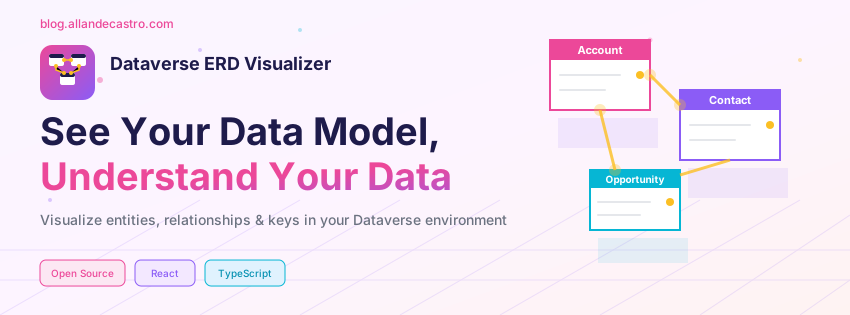
If you’ve ever tried to explain a Dataverse schema to a client, onboard a new developer to a complex Dynamics 365 project, or simply wrap your head around how 50+ tables relate to each other—you know the struggle.
There’s no built-in ERD tool in the Power Platform. Sure, you can export metadata, draw diagrams in Visio, or use external tools that require API connections and configuration. But what if you could just click a button inside your environment and instantly see an interactive, draggable, zoomable entity relationship diagram?
That’s exactly why I built the Dataverse ERD Visualizer.
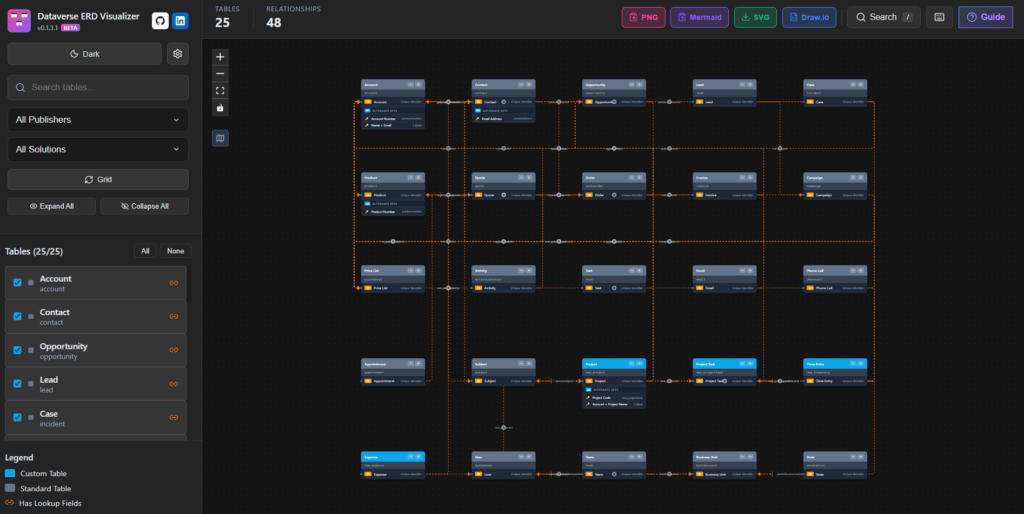
It’s free, open-source, runs entirely within your Dataverse environment, and requires zero external connections. No API keys, no data leaving your tenant—just pure visualization.
What’s in This Post
- Understanding the Problem: Why existing approaches fall short, where this fits alongside Plan Designer, and a vision for AI-assisted exploration with MCP.
- A Personal Note: Why I built this as a React learning project and the joy of “vibe coding”.
- Key Features & Capabilities: What the Dataverse ERD Visualizer actually does—from interactive diagrams to multiple export formats.
- Under the Hood: Technical Architecture: How it’s built, why I made certain design choices, and what makes it performant at scale.
- Getting Started: Three ways to install it and start visualizing your schema today.
- What’s Next: The roadmap and how you can contribute.
Understanding the Problem
If you’ve worked on enterprise Dataverse or Dynamics 365 implementations, you’ve encountered this scenario: a project with dozens—sometimes hundreds—of custom tables, each with multiple relationships. Maybe you inherited the project, or you’re documenting it for a client handover, or you’re just trying to understand the data flow before building an integration.
Here’s what typically happens:
- You open the Tables area in make.powerapps.com, click through each table one by one, and try to mentally piece together the relationships
- You export metadata using XrmToolBox or similar tools, then spend hours drawing boxes in Visio or Draw.io
- You use external visualization tools that require setting up app registrations, API connections, and dealing with authentication
- You give up and just… ask the person who built it (if they’re still around)
None of these approaches give you what you really need: a quick, interactive view of your data model that updates as your schema evolves.
That’s the gap the Dataverse ERD Visualizer fills. It’s a web resource that runs directly inside your environment, reads metadata through the Dataverse Web API (using your existing session), and renders an interactive diagram you can explore, arrange, and export.
Where Does This Fit with Plan Designer?
If you’ve seen screenshots of the Dataverse ERD Visualizer, you might think: “Wait, doesn’t Microsoft have something for this now?”
You’re probably thinking of Plan Designer in Power Apps—a copilot-first development tool that lets you describe a business use case in natural language and generates a complete Power Platform solution: Dataverse tables, canvas apps, model-driven apps, Power Pages sites, flows, and agents. It even includes process diagrams to visualize workflows. It’s genuinely impressive for what it’s designed to do.
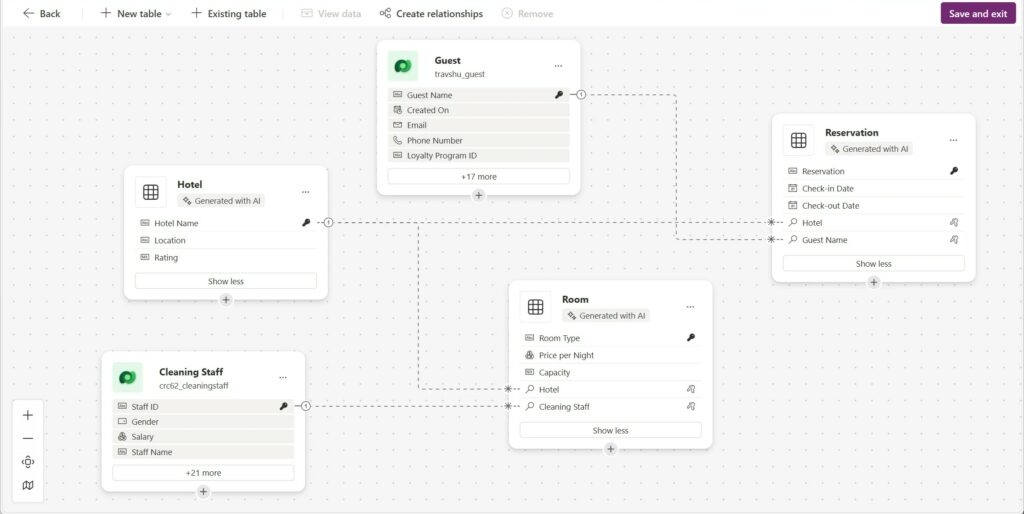
But here’s the key difference: Plan Designer is for creating new solutions/tables. (you can of course add existing tables or use the data workspace experience when creating a new table to access this view).
If you’re working on a complex enterprise project with 150 tables, dozens of custom relationships, and years of organic evolution—you’re not going to create a new Plan just to visualize what’s already there.Tink of it this way: Plan Designer helps you answer “What should I build?” while the ERD Visualizer helps you answer “What do I already have, and how does it connect?” They’re complementary tools for different moments in the maker journey.
My needs were specific, and they shaped the tool:
- Direct access to ERD visualization. I wanted to see my schema without going through a Requirements or Process Agent workflow first. Sometimes you just need to explore what’s there—quickly and without ceremony.
- Performance on large solutions. Enterprise environments with hundreds of tables can be demanding. I needed something lightweight that wouldn’t struggle under that load.
- Accessibility for all users. A business users should be able to visualize the data model from the same interface they’re already working in—not through a separate experience.
- Complete relationship coverage. I wanted to ensure all relationships are visible, including self-referential lookups (like Parent Account on the Account table) and other edge cases that can be easy to miss.
- Alternate Key support. For integration scenarios and data migration work, seeing Alternate Keys in the ERD is invaluable—and that’s built in.
- Export capabilities. Being able to export the diagram as an image or SVG means you can drop it straight into documentation, architecture reviews, or client presentations—no screenshots required.
The Bigger Vision: MCP and AI-Assisted Exploration
This project got me thinking about something larger: what if AI could help us explore, document and create toolings for Dataverse environments the way it helps us build them?

With the emergence of MCP (Model Context Protocol) servers, we’re seeing a new pattern for how AI assistants can interact with external systems. A Dataverse MCP Server already exists—and this opens up exciting possibilities for the future of maker tooling.
Imagine using the Dataverse MCP Server to:
- Ask natural language questions about your schema: “Which tables have relationships to Account?”
- Generate documentation automatically: “Create a data dictionary for the Sales solution”
- Understand impact before changes: “What would be affected if I delete this lookup field?”
- Explore relationships conversationally: “Walk me through how an Opportunity connects to a Quote”
- Turn conversations into deliverables: “Build me a migration mapping spreadsheet from Account to D365 Customer”
The Dataverse ERD Visualizer is a step in that direction—making the data model accessible and understandable through a visual interface. But the real opportunity is combining visual tools like this with AI-powered exploration through MCP. Not just for building new apps from prompts, but for truly understanding and documenting what already exists.
That’s the tooling gap I see in the Power Platform ecosystem. Plan Designer is amazing for creation. Now we need equally powerful tools for exploration and documentation—and AI, combined with tools like the Dataverse MCP Server, can play a huge role in making that intuitive.
A Personal Note: Learning React Through “Vibe Coding”
I’ll be honest—this project started as a learning exercise. I’ve spent years in the Dynamics 365 and Power Platform world, mostly working with C#, plugins, PCF controls, and TypeScript. But React? That was always something I admired from a distance. I’d see beautiful, responsive interfaces and think, “I should really learn that properly.” In the meantime, I wanted to experience teh real vibe coding concept to ship a real tool at the end that can be used and this helped me a lot to shape my vision on how I want to work with AI to increase my developer productivity.
The Dataverse ERD Visualizer became my excuse.
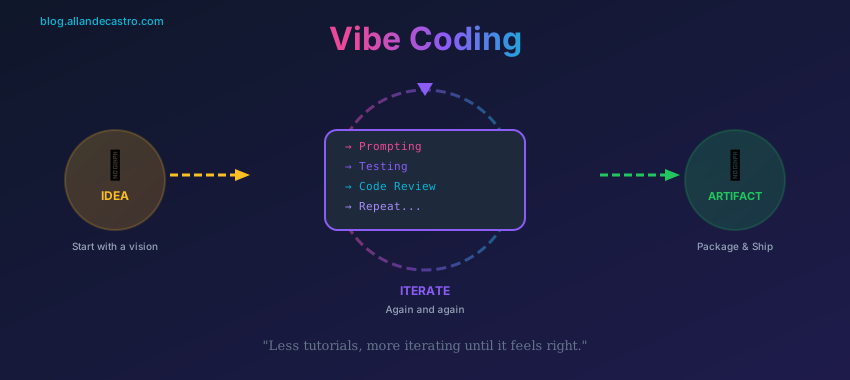
I approached it with what we call “vibe coding”—less about following tutorials step by step, more about having a vision for what the interface should feel like and iterating until it got there. I wanted the experience of dragging entities around to feel smooth. I wanted the zoom to be intuitive. I wanted the export to just work.
Along the way, I learned:
- Why state management patterns matter (and why sometimes you don’t need Redux)
- How to think in components rather than pages
- The joy of seeing hot reload update your changes instantly
- How to use AI with efficiency.
Could I have built this faster with a framework I already knew? Maybe. But that wasn’t the point.
The Power Platform community deserves better tooling, and sometimes that means stepping outside your comfort zone to build it. If you’re a maker who’s been curious about React, I’d encourage you to find a project that scratches your own itch. There’s no better way to learn and hopefully we do know have one of the best teacher in the world (if we’re a good student): AI.
Key Features & Capabilities
Rather than just listing features, let me walk you through how this thing came together. It didn’t start with everything you see now — it evolved as I used it and figured out what was actually missing.
First decision was the overall UI structure. I went with a sidebar panel on the left for controls and settings, command bar at the top for quick actions. Why leftside? Your main content — the diagram — gets the most space on the left where your eye naturally goes first. Controls are accessible but not in the way. The canvas itself is infinite, drag it around, zoom in and out, no boundaries.
Then came search and filtering. With 50+ tables, scrolling around looking for something gets old fast. Ctrl+F, start typing, matching tables highlight. Filter by publisher to hide system tables. Pick which fields show on each card. That flexibility ended up being more important than I initially thought.
Dark mode was kind of a personal requirement — I work late sometimes and bright white canvas at 11pm is rough. While I was in there I added color customization too. Small thing but makes screenshots look better in client docs 😊
Performance is where I spent more time than expected. 20-30 tables? Smooth. 150+ tables? Not great. Had to learn viewport culling, memoization, debounced search. React Flow’s built-in optimizations handle the heavy lifting for large schemas. Now it handles 250+ tables without issues.
And exports — a diagram you can’t share easily is not really useful. PNG to clipboard, SVG for vectors, Mermaid for markdown, Draw.io format. That last one clients love because they can edit it themselves.
I recorded a video walkthrough showing all of this in action — easier to see the actual interactions than read about them.
Interactive Visualization
The core experience is a canvas where each entity appears as a card showing its fields, primary key, and alternate keys. You can:
- Drag entities anywhere on the canvas to arrange them logically
- Zoom and pan to navigate large schemas (mouse wheel, pinch gestures, or keyboard shortcuts)
- See relationships as lines connecting lookup fields to their target entity’s primary key
- Search and filter by table name, publisher prefix, or solution
- Multi-select entities with Ctrl+Click
Multiple Layout Options
Not everyone thinks the same way about data models. The visualizer offers three layout algorithms:
- Force-directed — Entities automatically space themselves based on their relationships, with connected tables pulling closer together
- Grid — A clean, structured layout for documentation purposes
- Auto-arrange — Quick organization with a single click
Field Selection
You don’t always need to see every field. The field selector lets you choose which columns appear on each entity card—perfect for focusing on just the relationships, or diving deep into specific attributes.
Table Collapse
For complex diagrams where you want to focus on relationships rather than field details, you can collapse individual tables or use bulk collapse/expand to hide field details across all entities. This makes it easier to see the big picture on large schemas.
Alternate Key Support
Alternate keys matter for integrations and data imports. The visualizer displays them with full composite key support, so you can see at a glance which field combinations uniquely identify records.
Performance at Scale
Here’s the thing about enterprise schemas: they’re big. I’ve seen environments with 50+ tables. The visualizer handles this through:
- Viewport culling — Only entities visible on screen are rendered
- Virtual scrolling — Efficient entity list rendering for large environments
- React.memo — Prevents unnecessary re-renders on frequently-updated components
- Debounced search — Filtering doesn’t lag, even with hundreds of tables
- Lazy loading — Modals load on-demand to keep initial load fast
Export Capabilities
Diagrams are only useful if you can share them. The visualizer exports to:
- PNG — Copy directly to clipboard for pasting into documentation
- SVG — Vector format that scales perfectly for any resolution
- Mermaid — Copy the diagram code for use in markdown documentation or GitHub
- Draw.io — Full export compatible with both Draw.io and Microsoft Visio
That last one is particularly handy for clients who want to annotate or modify the diagram in their preferred tool.
Dark/Light Mode
Because we all have preferences. The theme persists across sessions, so it remembers your choice.
Advanced Customization
Beyond theming, the visualizer offers deep customization options:
- Custom entity colors — Customize colors for custom tables (default: cyan #0ea5e9), standard tables (default: slate #64748b), and lookup relationships (default: orange #f97316)
- Edge styles — Choose between Smoothstep, Straight, Bezier, or Step edge rendering
- Manual edge offset — Fine-tune relationship line routing for complex diagrams
User Experience
- Feature guide — Interactive onboarding for new users
- Keyboard shortcuts — Ctrl+F (search), Escape (deselect), +/- (zoom)
- Toast notifications — Visual feedback for user actions
- Error boundaries — Graceful error handling
- Accessibility — Skip links, ARIA labels, keyboard navigation
- Field drawer — Per-entity attribute selector with search
Under the Hood: Technical Architecture
For the technically curious—and for those who want to contribute or fork the project—here’s how it’s built.
Tech Stack
| Category | Technology |
|---|---|
| Framework | React 19 |
| Language | TypeScript 5.7 |
| Build Tool | Vite 7.3 |
| Diagram Engine | React Flow (@xyflow/react 12.10) |
| Export Library | html-to-image 1.11.13 |
| Icons | Lucide React |
| Styling | CSS Modules (scoped styling) |
| Export | JSZip (for Draw.io export) |
| Target Platform | Dataverse Web Resource |
| Bundle Size | ~274 KB (77 KB gzipped) |
I made deliberate choices to keep dependencies minimal. No Redux, no Zustand, no CSS framework—just pure React hooks and TypeScript. The result is a small bundle that loads quickly inside your model-driven app.
Dataverse Integration
The visualizer uses the Xrm.WebApi to fetch metadata:
- EntityDefinitions — Table names, primary keys, attributes
- RelationshipDefinitions — One-to-many and many-to-many relationships
- Keys — Alternate key definitions
- Solutions — Solution components for filtering
All API calls use your existing Dataverse session—no separate authentication required. This also means the visualizer respects your security roles; you only see metadata for tables you have access to.
Importantly: the visualizer is read-only. It cannot create, update, or delete any data. It only reads metadata.
State Management
Five specialized custom hooks handle all the complexity:
- useDataverseData — Fetches and caches metadata from the API with mock mode support
- useERDState — Manages entity positions, selection, and layout state
- useLayoutAlgorithms — Force-directed, grid, and auto-arrange algorithms
- useKeyboardShortcuts — Keyboard event handling
- useVirtualScroll — Efficient list rendering for 250+ entities
Component Architecture
The visualizer is built from 25+ React components, including:
- ReactFlowERD.tsx — Main visualization canvas
- TableNode.tsx — Custom entity card component
- DraggableEdge.tsx, SelfReferenceEdge.tsx, RelationshipEdge.tsx — Three custom edge types
- Sidebar.tsx — Filter and settings panel
- Toolbar.tsx — Stats and export actions
- FieldDrawer.tsx — Per-entity field selector
- EntitySearch.tsx — Quick entity finder (Ctrl+F)
- FeatureGuide.tsx — Onboarding modal
Development Experience
One thing I’m proud of: you can run the visualizer locally without a Dataverse connection. When you run npm run dev, it automatically detects that Xrm.WebApi isn’t available and switches to mock mode with realistic sample data.
This makes development and testing much faster—no need to deploy to Dataverse every time you want to test a change.
npm install
npm run dev
# Opens at http://localhost:3000 with mock data
CI/CD Pipeline
The project includes GitHub Actions workflows for:
- Continuous Integration — On every push and PR: type checking, building, and artifact generation
- Continuous Deployment — On version tags: builds the managed solution, updates version numbers, creates a GitHub Release with downloadable assets
Getting Started
Three ways to get the Dataverse ERD Visualizer running in your environment:
Option 1: Import the Pre-Built Solution (Fastest)
- Download the latest release from GitHub Releases
- Import the managed solution:
pac solution import --path DataverseERDVisualizer_x.x.x_managed.zip
- Add the web resource to your model-driven app (see below)
Option 2: Build from Source
If you want to customize or contribute:
git clone https://github.com/allandecastro/dataverse-erd-visualizer.git
cd dataverse-erd-visualizer
npm install
npm run build:webresource
Then upload the files from dist/webresource/ to Dataverse as web resources.
Option 3: Development Mode
For contributors or those who want to explore the code:
npm install
npm run dev
This runs locally with mock data—no Dataverse connection needed.
Adding to Your Model-Driven App
Once the solution is imported:
- Open your model-driven app in the App Designer
- Add a new Subarea
- Set Content Type to Web Resource
- Select adc_dataverseerdvisualizer.html
- Publish the app
That’s it. The ERD Visualizer will appear in your app’s navigation.
Required Permission
- Read: Entity (Organization level)
- Read: Attribute (Organization level)
- Read: Relationship (Organization level)
- Read: Web Resource (Organization level)
Security Considerations
Since this runs inside your environment and reads metadata, here’s what you should know:
- Session-based authentication — Uses your existing Dataverse session, no credentials are stored
- Read-only — Only reads metadata, cannot modify any data
- No external calls — All data stays within your environment, nothing leaves your tenant
- Security role aware — Users only see tables if they have access to
- HTTPS only — All API calls are over secure connections
What’s Next
The current version (BETA) covers the core functionality, but I have plans for more:
| Feature | Description |
|---|---|
| Diagram Snapshots | Save and restore specific diagram arrangements locally |
| Share via URL | Generate shareable links with encoded diagram state |
| Relationship Line Styles | Smoothstep, Straight, Bezier, Step styles available |
If you have ideas for features, find a bug, or want to contribute, the project is fully open source under the MIT license.
Wrapping Up
The Dataverse ERD Visualizer started as a tool I needed for my own projects—a way to quickly understand and document data models without leaving the environment. I’m releasing it to the community because I know I’m not the only one who’s struggled with this 😜
If you try it out, I’d love to hear how it works for you. Drop a comment, open an issue on GitHub, or connect with me on LinkedIn. And if you build something cool on top of it—or find a way to make it better—PRs are always welcome.
Useful Links
- GitHub Repository: https://github.com/allandecastro/dataverse-erd-visualizer
- Releases: https://github.com/allandecastro/dataverse-erd-visualizer/releases
- Issues & Feature Requests: https://github.com/allandecastro/dataverse-erd-visualizer/issues




Comments (3)
Dataverse ERD Visualizer: See Your Data Model, Understand Your Data – 365 Community Onlinesays:
January 10, 2026 at 10:10 PM[…] post Dataverse ERD Visualizer: See Your Data Model, Understand Your Data appeared first on Allan […]
Anand Madhavan Narayanansays:
January 13, 2026 at 5:33 PMVery good tool.Only suggestion is ,i see CPU get spiked up when i use this tool in browser.IT goes upto 80%.
Allan De Castrosays:
January 14, 2026 at 7:22 PMHey
Thanks a lot for the feedback! Can you details this by opening a Github Issue ? I assume number of tables is the problem there, must check if I can find any optimizations.